Knowledge Base Features
Use the information below to learn about all the features in the knowledge base, as well as how each functions.
Site Features
The knowledge base uses responsive design so content and navigation adapt cleanly to desktops, tablets, and smartphones. You can access information in four ways: a structured table of contents, an alphabetical index, a glossary of terms, and user-specified favorites/bookmarks. Together these options support both task-oriented navigation (TOC), targeted lookups (index and glossary), and quick return to frequently used topics (favorites). The subsections below describe the capabilities and benefits of each feature in more detail.
Responsive Design
The X-Start knowledge base is a native, responsive design website, so it's accessible from a desktop computer, tablet, or even mobile phone, with content automatically resizing based on the device to provide a consistent experience, regardless of how you access the site.
Search
A robust search tool is available. See Search Tips for detailed information about this feature.
Table of Contents
The X-Start knowledge base is organized by six main sections, and the table of contents reflect that.
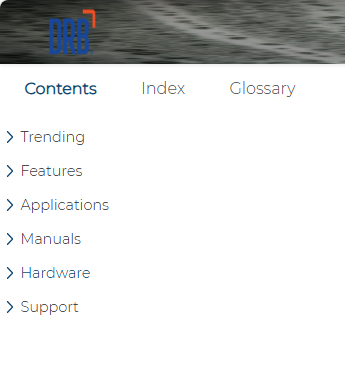
Important: The breadcrumbs navigation links that appear at the top of each topic (when a topic is open), mirrors its table of contents location. See the Topic Features section below for more details about this feature.
Trending
See and open new topics that were added, and existing topics that have been modified. Topics are organized by month. It also includes information about the knowledge base's features, and knowledge base search tips.
Features
Information about the X-Start kiosk terminal's features, as well as each feature's capabilities (and limits).
Applications
Access information about each component in the X-Start application, such as configuration fields, report data, etc.
Manuals
Step-by-step instructions, many with embedded videos.
Hardware
View a list of all supported hardware for the X-Start kiosk terminal.
Support
Troubleshooting and issue resolution, along with release notes.
Index
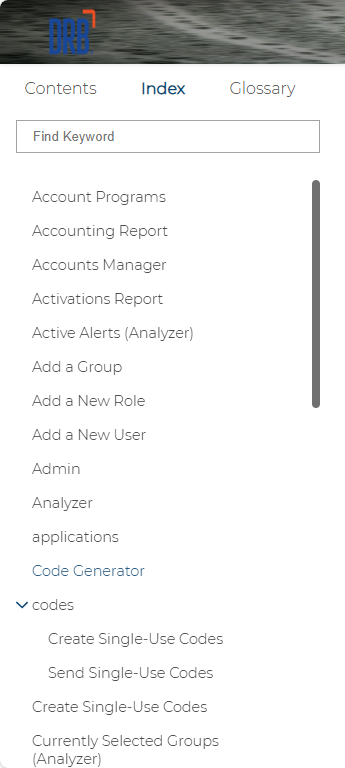
The knowledge base includes an index: an alphabetically sorted list of keywords and bookmarks assigned to topics in the knowledge base. Every topic title is listed in the index, so if users know the title of a topic they can directly access it from the index. The index also includes an auto-filter tool that lets users enter a keyword to narrow the list to only those entries that match. More detailed information about each capability and how to use them is provided in the subsections below.
Topic Titles
In addition to general keywords, every topic title is listed in the index. So users who know the name, or part of the name of a specific topic, can quickly and easily locate it in the index.
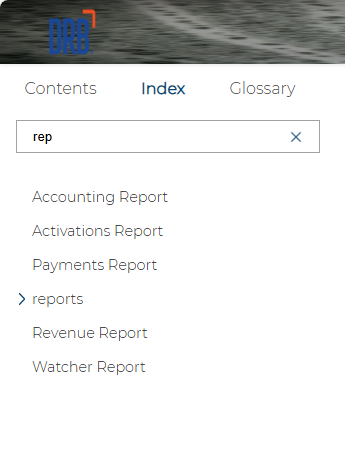
Find Keyword
The Find Keyword function at the top of the index provides the ability to locate a specific keyword by entering alphanumeric characters; as characters are entered, the list auto-updates to only display keywords that match. It returns partial matches, so any part of the index keyword that matches is included in the results. Clearing the characters entered in the filter, auto-restores the full list of keywords.
Glossary
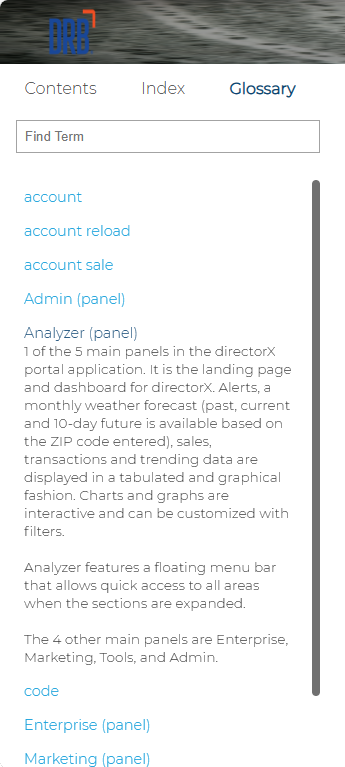
The Glossary provides a list of terms related to the product, with definitions for each. Navigate up and down the list to locate a term, or use the provided Find Term function to quickly filter the list of terms.
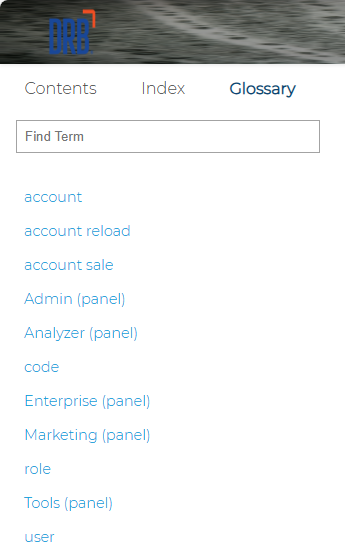
Select a term to view its definition. Select it again to hide the definition.
Find Term
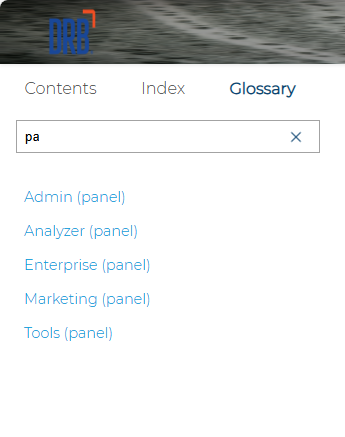
The Find Term function at the top of the glossary list provides the ability to locate a specific term by entering alphanumeric characters; as characters are entered, the list auto-updates to only display terms that match. It returns partial matches, so any part of the glossary term that matches is included in the results. Clearing the characters entered in the filter, auto-restores the full list of glossary terms.
Favorites
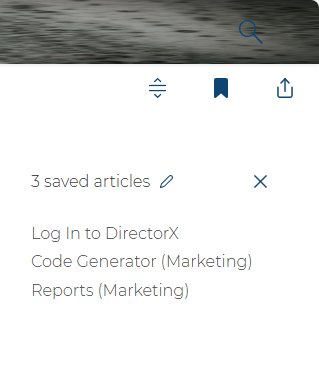
The Favorites tool lets users bookmark topics for quick access, saving time when returning to frequently used content. Favorites are stored in browser cookies, so they are specific to the combination of device and browser - they do not sync across different devices or different browsers. For example, bookmarks you save in one browser on your laptop will not appear when you use that same browser on a different device (even if you’re signed into the browser there). Note that clearing cookies or browser data will remove saved favorites, so consider re-adding important bookmarks on each device or using alternative sharing methods for cross-device access.
Topic Features
Each topic includes a set of interactive controls designed to improve reading, navigation, and sharing. Features include expand/collapse all drop-down sections, share topic, add/remove to favorites, print topic, toggle off search highlight, and "In this topic" navigation section with jump links. These tools make it easier to scan long pages, save or share content, produce printable copies, and move directly to relevant sections. The subsections below describe each capability and its benefits in more detail.
TOC Breadcrumbs
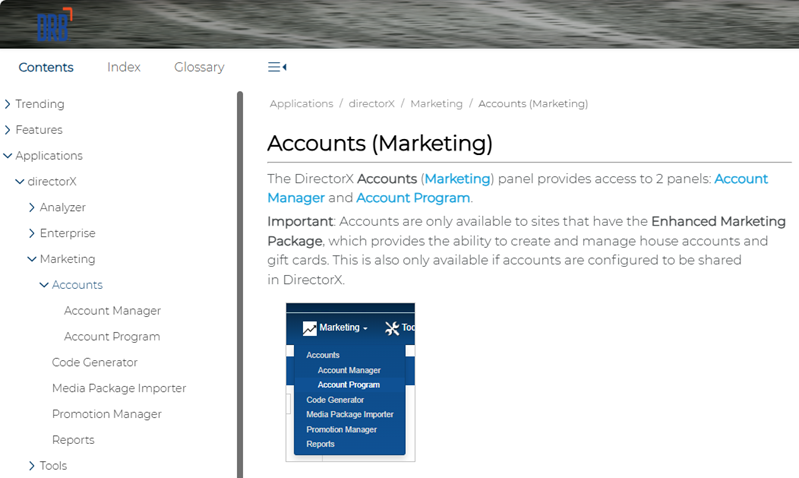
The top of each topic includes navigation links that mirror the topic's location in the table of contents. Each breadcrumb link can be selected to open the corresponding topic. Breadcrumb links provide an intuitive method to directly access related topics.
Expand/Collapse Drop-Downs
An Expand/Collapse Drop-Downs function provides the ability to open all drop-down sections in the currently selected topic. Selecting it a second time closes all drop-down sections.
Share Topic
A Share Topic function provides the ability to email a link to the currently selected topic. When selected, it opens the default email application on the device, along with a link for the topic's URL.
"In this Topic" Navigation
An In this Topic Topic navigation panel is provided for each topic, so users can quickly navigate between sections in a currently selected topic with a single click/tap/touch.
Add/Remove to Favorites
An add/remove to favorites function provides the ability to save the currently opened topic to the knowledge base's favorites/bookmarks function. To add a topic to the favorites list, select the bookmark icon; the icon fills, identifying the topic as one that's been added. Select it again to remove it from the list; the icon fill is replaced with an empty, or hollow, bookmark icon, indicating that it is not saved to the favorites list.
Print Topic
A Print Topic function, located above the In this Topic section, provides the ability to print the currently opened topic in a printer-friendly format. Use this to print only the topic; the other knowledge base components, such as the table of contents, index, glossary side panels, knowledge base site header, and In this Topic side panel are not included.
Selecting the function opens a standard print dialog, with a preview of the topic. The dialog includes standard settings for selecting the printer, along with any formatting settings supported for the selected printer.
Remove Highlight
A Remove Highlight function provides the ability to toggle off the search highlighting applied to a topic opened from the search results list. When a topic is opened from the knowledge base search results, matching search terms are automatically highlighted in yellow so users can quickly scan the “matches.” If the highlights are distracting or the user needs a clean printed copy, use the Remove Highlight function to clear the yellow marks from the topic.
The toggle removes highlighting only for the current topic; selecting it again will not reapply highlighting. To restore the original search-term highlights, either refresh the browser page or reopen the topic from the search results.
Updated: 040126